

Microsoft Intune Multi-Admin Approval

What’s multi admin approval and when this feature released ?

Multi-Admin Approval (MAA) in Microsoft Intune is a security feature that introduces a mandatory second level of authorization for critical administrative actions. With MAA enabled, any high-impact change such as modifying security policies or deploying sensitive configurations must be reviewed and approved by another authorized administrator before it is applied. This feature was Introduced in preview in late 2023 and general available in 2024 Q1.

Why did Microsoft introduce MAA?

  • Preventing Single Admin risky actions
  • Add approval workflow for sensitive changes
  • Align Intune with Zero Trust security model

What’s benefits of implementing MAA?

Implementing Multi-Admin Approval brings multiple benefits:

  • Security & Reduced Risk: By definition, it cuts in half the risk that a single compromised admin can cause devastation. As one security writer put it, MAA adds a deliberate checkpoint between someone clicked wipe or deploy application to all devices or application detection logic is not set correctly which will cause the production impact
  • Compliance & Governance: MAA provides clear audit trails for change management. Many regulations and best-practices (ISO 27001, SOX, etc.) require separation of duties and approval workflows for critical changes
  • Accountability & Change Control: Every request captures who initiated it, who approved it, and why. A business justification is required on each request, so actions are linked to real business reasons. If something goes wrong
  • Operational Efficiency (in the long run): Initially, approval workflows add steps, but they can prevent costly mistakes. Consider the downtime and data loss from an accidental mass wipe. By avoiding even one incident, MAA easily pays for itself.

In Intune what changes can we protect with MAA Policy?

Intune’s Multi-Admin Approval (MAA) is a security and governance feature. It prevents unauthorized or accidental admin actions by introducing an additional approval step for sensitive operations supporting apps, scripts, device actions (wipe, retire, delete), compliance and configuration policies, RBAC changes, and device categories

What’s lifecycle for the MAA policy?

This three-step lifecycle – Request ➔ Review ➔ Complete – is enforced for all protected resources The request stage is when the initiator submits the change. The review stage is when an authorized approver examines the request and either approves or rejects it. If approved, the initiator must perform the final complete step to execute the change. (If the initiator does nothing within 30 days, the request expires and must be resubmitted.) During this process, the initiator can cancel their request anytime before approval

Prerequisites for MAA Configuration?

  • Two distinct admins: You need at least two administrative accounts in the tenant
  • Appropriate Intune roles: The initiator must have permissions to make the change.
  • Approver group and permission: The approver(s) must be in an Azure AD security group will explain in this blog how to configure this.
  • Licensing: Each admin (initiator and approver) needs an Intune license

How to configure MAA Approval policy?

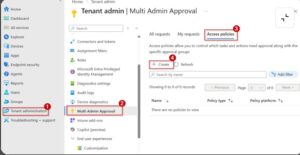
  • Step 1: Sign in to the Intune portal, then navigate to Tenant administration > Multi Admin Approval > Access policies. Click Create to start a new access policy.
  • intunemam1
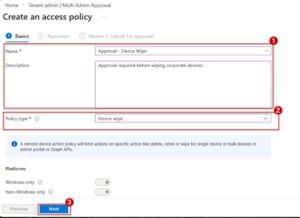
  • Step 2 (Basics): On the Basics page, give the policy a Name (e.g. “Device Wipe Approval”) and optional description. In Profile type, select the action category to protect. For example, choose Device wipe to protect all wipe actions, or Apps to protect app deployments, Compliance policy for compliance rules, Windows scripts for script deployments, etc. (Each access policy only applies to one profile type). Click Next.
  • intunemam2
  • Figure 2: Defining basic access policy settings. Enter a policy name/description and choose a Profile type (here, Device wipe). Only actions of this type will require approval.
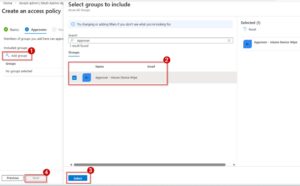
  • Step 3 (Approvers): On the Approvers page, under Include groups, click Add groups and select the Azure AD security group you created for approvers (e.g. “MAA Approvers”). This group’s members are the only ones who can approve requests for this policy. Click Next.
  • intunemam3
  • Step 4
    (Review + Create): On Review + create, verify the settings. If
    everything is correct, click Create. Intune will then create the
    access policy.

At this point, the policy is in a Pending state
until it is approved by another admin. The wizard even shows a banner like
“Before this resource can be created, it must be approved by another admin.”
The initiating admin must enter a business justification and submit
the policy.

  • Step 5 (Approver signs in): The second admin (with the Approval for Multi Admin Approval permission) signs into the Intune portal. Go to Tenant administration > Multi Admin Approval > Received requests. They will see the new policy request listed as “Needs approval.”
  • Step 6 (Approve the policy): Select the request to view details. The approver can review the justification and settings. They can enter Approver notes, then click Approve request (or Reject request).

Step 7 (Initiator completes): If approved, Intune updates the policy status to Approved. Now the original admin (who created the policy) must go back to Multi Admin Approval > My requests, find the policy request, and click Complete. This finalizes and enforces the policy. Once completed, the access policy is in effect and future actions of that type require multi-admin approval

How to track Audit Logging and Notifications?

Audit Logs: Every step in the MAA process is recorded
in Intune’s audit logs. This includes:

  1. Creation of the access policy.
  2. Submissionof a request (including the justification text).
  3. Approvals and rejections (including approver notes).
  4. Completion or cancellation of requests.

“All actions for requests and the approval process are logged in the Intune audit logs.

Notifications: Currently, Intune does not send email or push notifications when a multi-admin request is created or changes status